
Connect Claude to SEC Filings in 2 Minutes | AlphaCreek

Add AlphaCreek as a Claude custom connector—no code or CLI. Search 10-K and 10-Q filings with clickable source citations in under two minutes.
What is AlphaCreek MCP and why does it matter?
MCP (Model Context Protocol) lets AI models like Claude connect to external data sources and tools in real time. Claude's Connectors feature is the no-code way to register any MCP server — no terminal, no JSON config file, no developer setup required.
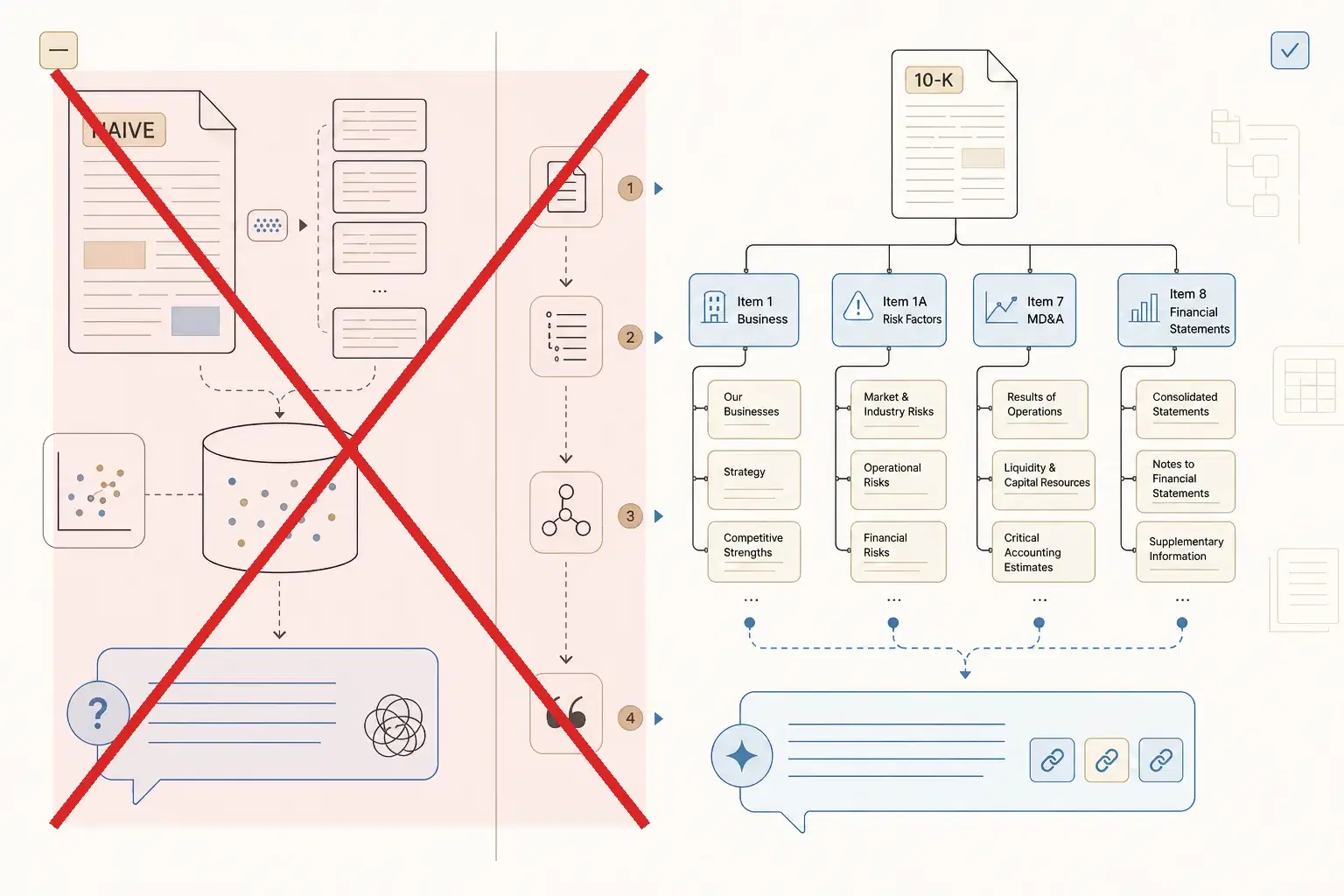
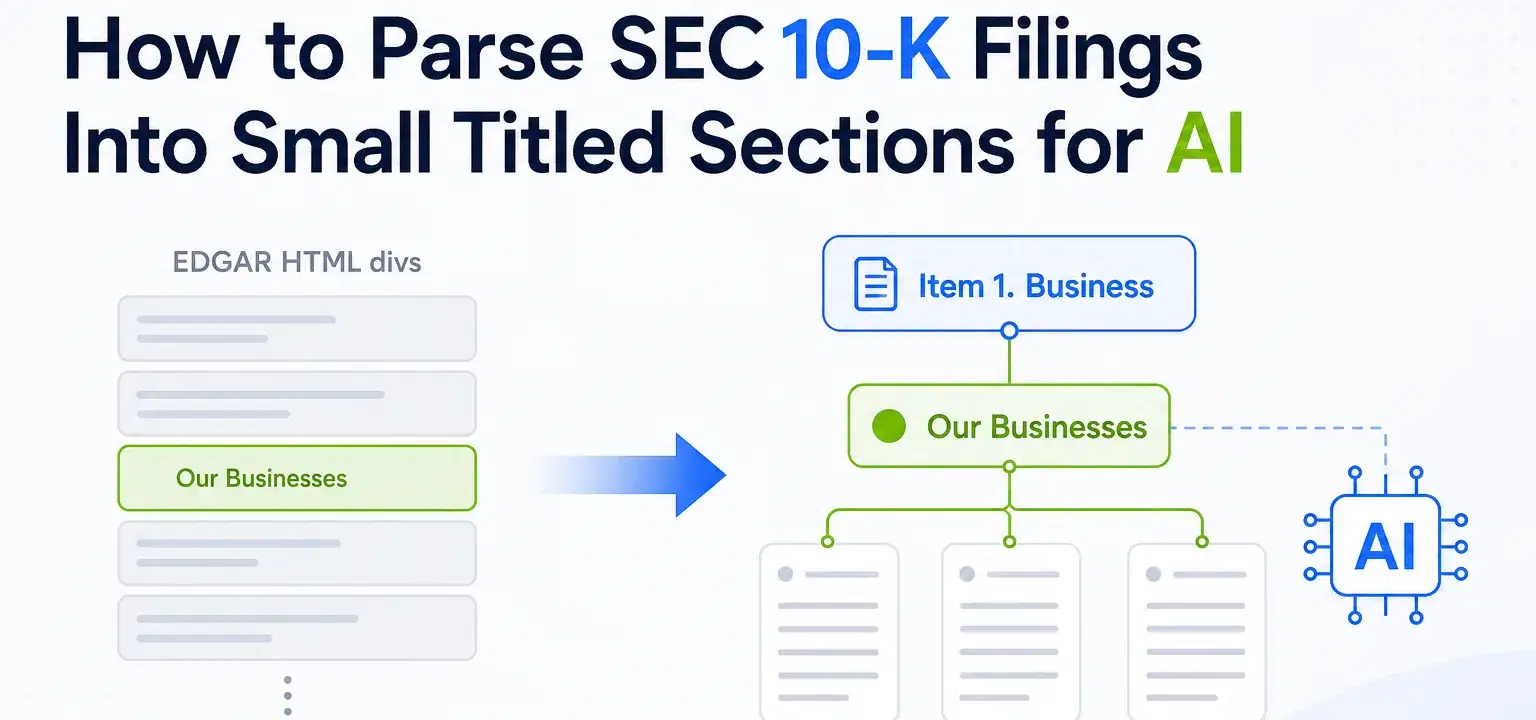
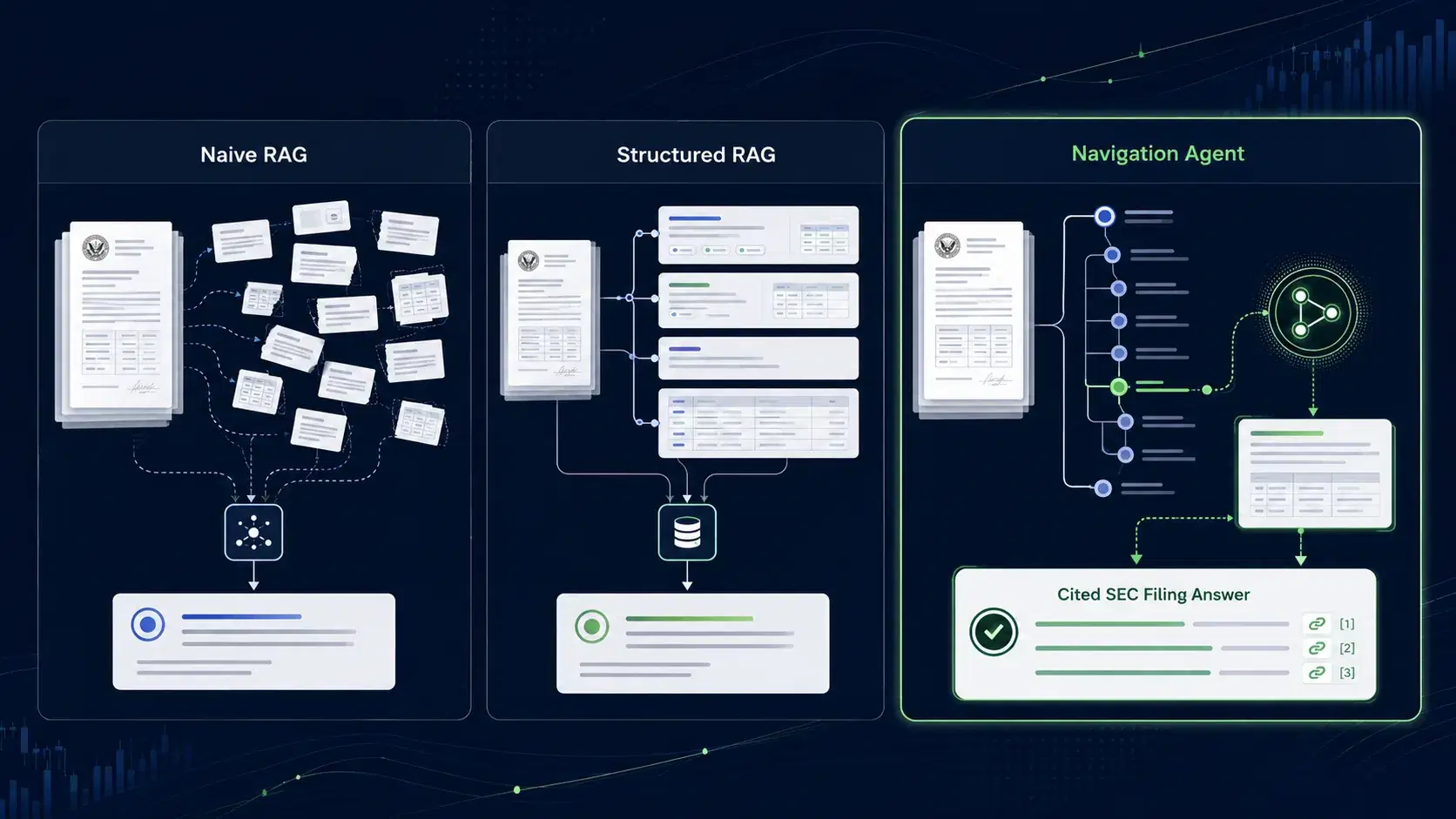
AlphaCreek is purpose-built financial data infrastructure for AI agents. Rather than dumping an entire filing into Claude's context, AlphaCreek transforms each SEC filing into a hierarchical, navigable structure — complete with a dynamically generated table of contents. Claude first interprets this filing map to locate the relevant section, then retrieves only the precise, context-aware chunks it needs. Every chunk is cited and traceable back to the original filing on EDGAR, with up to 85% fewer tokens than raw document retrieval.
If you've ever watched Claude confidently hallucinate a revenue figure, this is the fix. AlphaCreek grounds Claude's financial answers in the actual filings.
The result: Claude stops guessing at financial figures and starts answering with the actual numbers, from the actual filing, with a link you can click to verify.
TL;DR — Under 2 Minutes
Open Claude → Customize → Connectors → + Add custom connector → paste https://mcp.alphacreek.ai/mcp → click Add → log in or sign up to AlphaCreek → start researching stocks
Table of Contents
What is AlphaCreek MCP and why does it matter?
- Step 1 — Add Connector
- Step 2 — Add a custom connector
(Optional) — Set Tool Permissions - Step 3 — Log in or sign up to AlphaCreek
- Recommended best practices: unlock the full power
Step 1 — Add Connector
Navigate to claude.ai and sign in to your account.
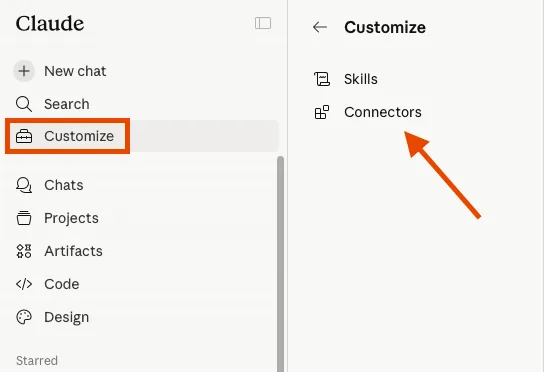
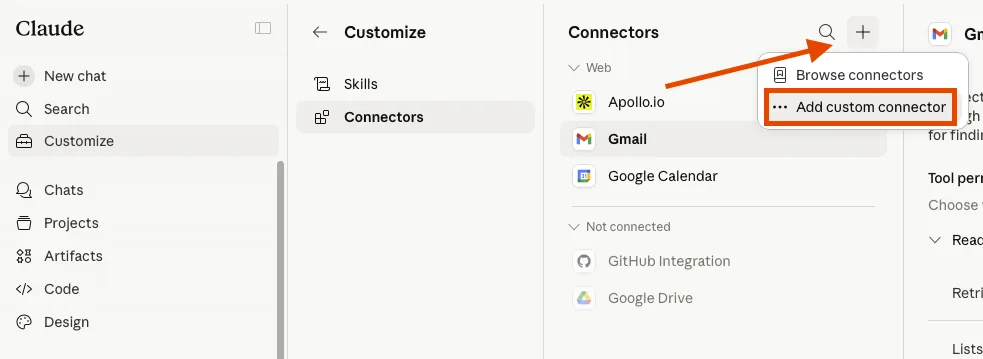
Navigate to Customize
In the left sidebar, click Customize. This is where Claude lets you personalize your experience — including adding MCP connectors, setting personal preferences, and managing your profile.
Open Connectors
Inside the Customize panel, select the Connectors tab. This section shows all currently connected MCP servers. If this is your first connector, it will be empty.
Step 2 — Add a Custom Connector
Click the + Add custom connector button. This opens a form where you'll enter the connector name and the remote MCP server URL.
Enter Your Connector Name and MCP Server URL
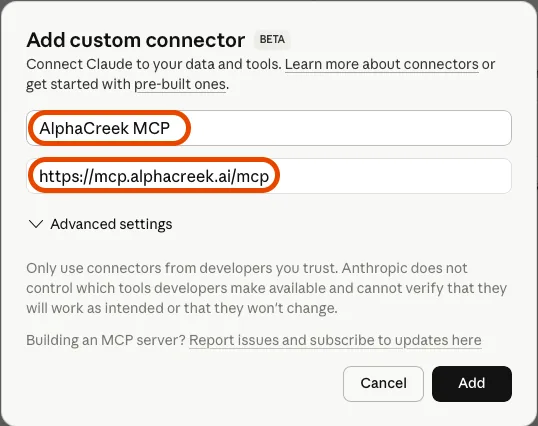
You'll see two fields: a Name field and a Remote MCP Server URL field.
For the Name, you can enter anything that makes sense to you — for example:
AlphaCreek MCPStock Data MCPSEC Filing Research
For the Remote MCP Server URL, enter exactly:
https://mcp.alphacreek.ai/mcp
Tip: The name you enter is just a label for your own reference — it does not affect how the connector functions. Use whatever is most recognizable to you.
Click Add
Click the Add button to register the connector. Claude will validate the URL and initiate the connection to AlphaCreek's MCP server. This usually takes just a second or two.
(OPTIONAL) — Set Tool permissions to Always Allow
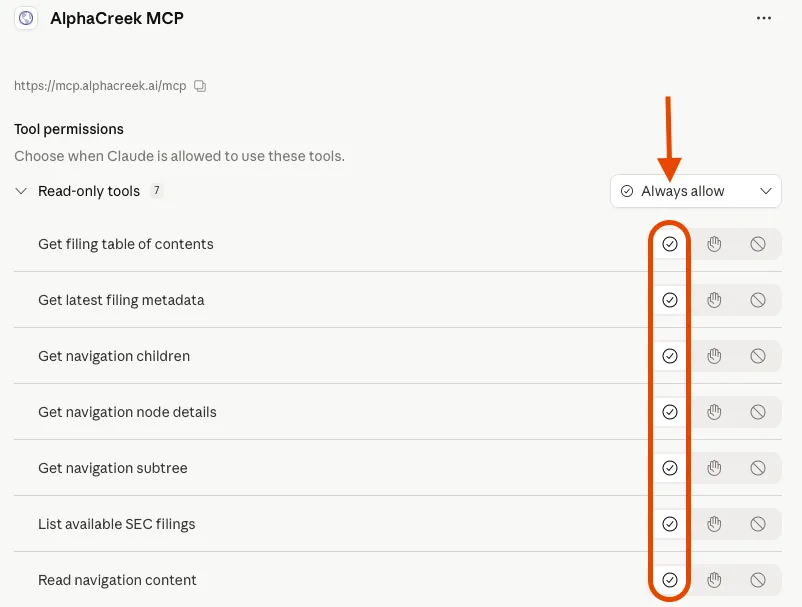
Once the connector is added, Claude will display a list of tool permissions — these are the individual AlphaCreek tools that Claude is allowed to call during a conversation.
By default, Claude may ask for your approval each time it uses one of these tools. To avoid interruptions mid-research, we recommend flipping every permission to Always allow.
To do this: under Tool Permissions, toggle each item from "Ask" to Always allow.
Why we recommend this: Without it, Claude will pause and prompt you for permission every time it calls an AlphaCreek tool — which can break the flow of a multi-step research session. Setting everything to Always allow means Claude can retrieve filing data seamlessly, the way it was meant to work.
Step 3 — Log In or Sign Up to AlphaCreek
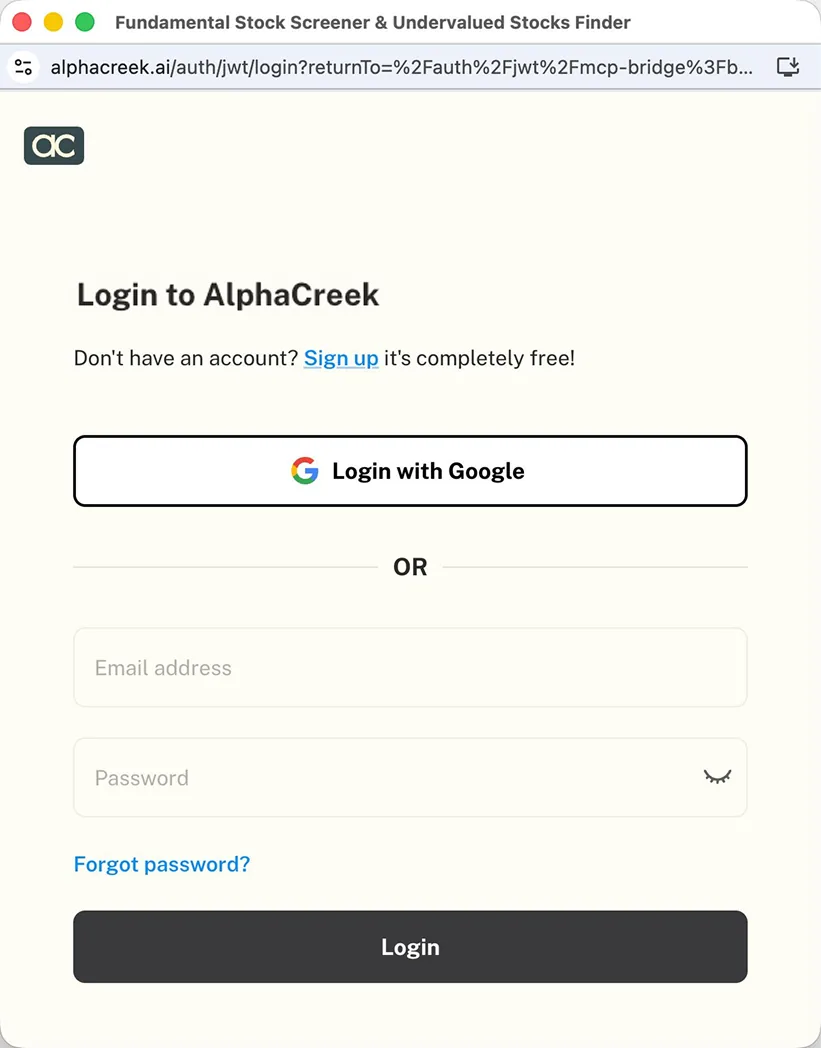
Claude will prompt you to authenticate with AlphaCreek. If you already have an AlphaCreek account, log in with your credentials. If you're new, you can create a free account directly from this prompt — no separate sign-up flow needed.
AlphaCreek uses OAuth-based authentication, so your credentials are handled securely through AlphaCreek's own login screen and are never shared with or stored by Claude.
Start Researching Stocks
You're connected. Open a new Claude chat and try a prompt like:
"What were NVIDIA's data center revenues in their most recent 10-Q?"
Claude will call the AlphaCreek MCP tools, retrieve the relevant filing sections, and return an answer with clickable source references back to the original EDGAR filing. No hallucinations. No guesswork.
Recommended Best Practices: Unlock the Full Power
The connector is live — but there's one more step that dramatically improves the quality and consistency of Claude's financial research. Add a personal preference instruction that tells Claude to always reach for AlphaCreek first, and to always return source-linked citations.
Where to Set This
Go to Settings → General → Personal Preferences. You'll see a free-text field where you can give Claude standing instructions that apply to every conversation. Paste the following:
For financial questions regarding companies, use AlphaCreek MCP. Prefer AlphaCreek over general web search for company financials, SEC filings, earnings, segment revenue, margins, guidance, valuation inputs, and risk factors.

Try to always link the reader_url of nodes returned by AlphaCreek to every material claim that you make to give me a clickable reference that supports those claims so that I can double-check.
[Screenshot 9: Settings → General → Personal Preferences with the AlphaCreek instruction pasted in]
Why This Matters
Without this instruction, Claude may default to general web search for financial questions — returning results from secondary sources, news summaries, or analyst commentary that may lag, misquote, or paraphrase original filing data.
With this instruction set, Claude understands that:
- AlphaCreek is the primary source — Claude always reaches for the actual filing before any web search for company financials.
- Every claim is cited — Clickable links to the exact EDGAR filing section appear inline, so you can verify in one click.
- Scope is unambiguous — Earnings, margins, guidance, risk factors, segment revenue — all routed to AlphaCreek automatically.
- Answers are verifiable — Every number traces back to a primary source. No more wondering whether a figure is real or hallucinated.
Think of it as giving Claude a standing operating procedure: when doing financial research, use the primary source, and always show your work.
Ready to Ground Claude in Real SEC Data?
Sign up for free at alphacreek.ai and complete setup in under 2 minutes.